
November 26, 2019
Solved

When I pay bills can I see the bill date and not the due date?

  • November 26, 2019
  • 2 replies
  • 0 views
Original commenter did not share additional details

Best answer by GlinetteC

Good to have you back, usher.


In the Pay Bills window, there isn't an option to show both the bill date and the due date. However, you can pull up the Transactions History of your bill instead. This will show your Bill information. Please follow these steps:

  1. Locate the bill.
  2. Click the Reports tab at the top.
  3. Select Transactions History.

Please see attached screenshot for your reference:


Also, you can pull up the Transaction List by Vendor report and customize it. I'll show you how:
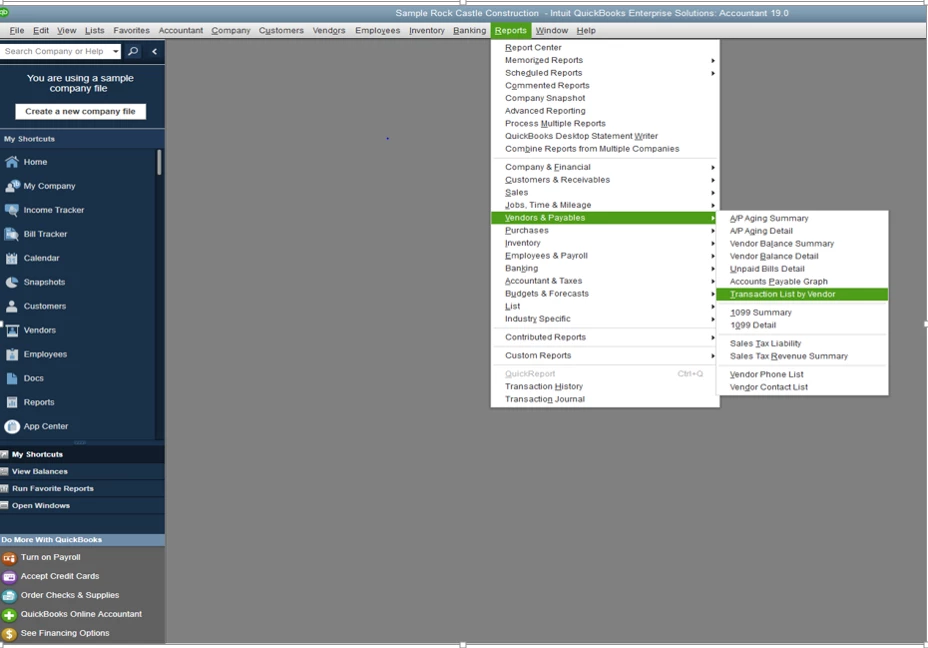
  1.  Go to the Reports menu, select Vendors & Payables, then choose Transaction List by Vendor.

    2. Click Customize Report

    3. In the Columns section, search for Due Date to add it on the report.

    4. Click OK


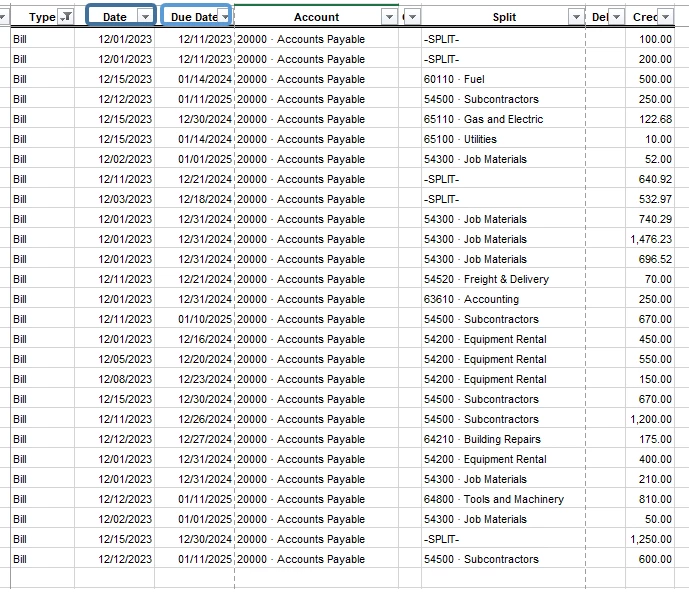
Take note that in the report, you'll see all the transaction type. However, you can filter it to only show the bill by exporting it to Excel. 


I've added screenshot for your reference:
 

Keep me posted with the results. I want to make sure this is taken care of.

2 replies

ShallyMarR
November 26, 2019

Hello, @usher.


Thanks for visiting the Community.


The due date appears so you'd know how much time is left for you to pay the bills. At this time, there isn't an option to hide the due date and only show the bill date.


I can see how this feature to include the bill date when paying bills in QuickBooks Desktop. Rest assured, I'm taking note of this suggestion for future enhancement.


For you to keep updated on our latest updates and features,  you can check your QuickBooks account. 


Here's how:


1. Go to Help menu.

2. Click the New Features.

3. Select either New Features Tour or What's New tab.


You might need this resource page for future reference in case you want to learn more about payment you make: Pay bills in QuickBooks Desktop.


Reach out to me if you need further assistance, I’m always here to help. Take care and have a great day!

usherAuthor
November 26, 2019

Thank you @ShallyMarR

Is there a way to show the bill date and the due date? 

GlinetteCAnswer
November 26, 2019

Good to have you back, usher.


In the Pay Bills window, there isn't an option to show both the bill date and the due date. However, you can pull up the Transactions History of your bill instead. This will show your Bill information. Please follow these steps:

  1. Locate the bill.
  2. Click the Reports tab at the top.
  3. Select Transactions History.

Please see attached screenshot for your reference:


Also, you can pull up the Transaction List by Vendor report and customize it. I'll show you how:

  1.  Go to the Reports menu, select Vendors & Payables, then choose Transaction List by Vendor.

    2. Click Customize Report

    3. In the Columns section, search for Due Date to add it on the report.

    4. Click OK


Take note that in the report, you'll see all the transaction type. However, you can filter it to only show the bill by exporting it to Excel. 


I've added screenshot for your reference:


Keep me posted with the results. I want to make sure this is taken care of.

January 19, 2021

Yes you can. What i do is i set up a new TERM. I name it Cash Term and set Net Due in 0 Days. Every time i enter a bill, i will choose Cash Term. In this way, it will mirror the Invoice date as Due date in the system, making it easier for me if i want to pay by certain date.


I have attached a sample picture. Hope this helps.


June 12, 2023

This is a great work round

June 12, 2023

You’re always welcome, manager.


I’m glad to hear that the workaround provided by my colleague had you see the bill date and the due date in QuickBooks Desktop (QBDT). Rest assured that every concern posted in this forum is addressed accordingly.


Please don’t hesitate to come back if you have any QuickBooks-related concerns. Have a good one