Thanks for choosing QuickBooks Online in tracking your sales transactions. Raema.I know how important it is to re-categorize your payments. I'm here to help you with that.
Once your customer pays through the payment link, QuickBooks Online automatically uses the Service item as default. As a workaround, I'd recommend changing the item type. Here's how:
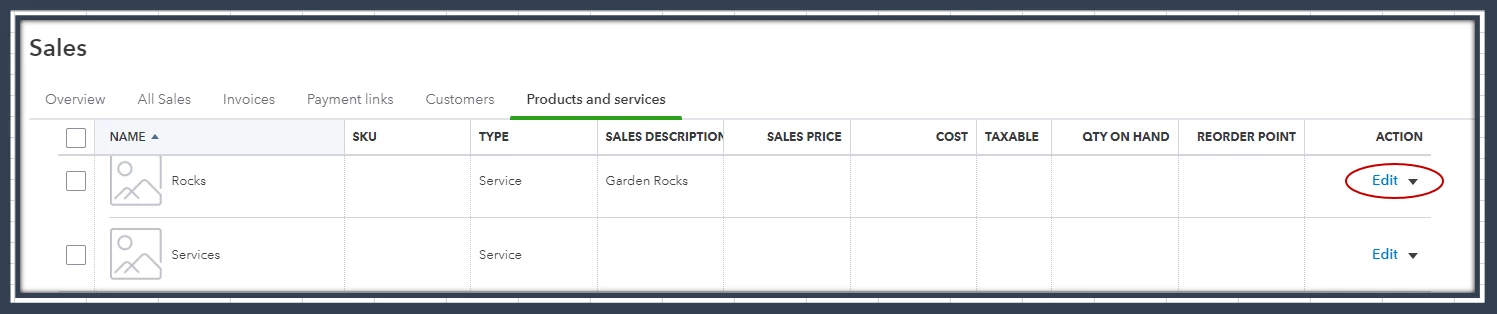
- Go to the Gear icon and then select Products and Services.
- Find the service item you want to change.
- Select Edit in the Action column.
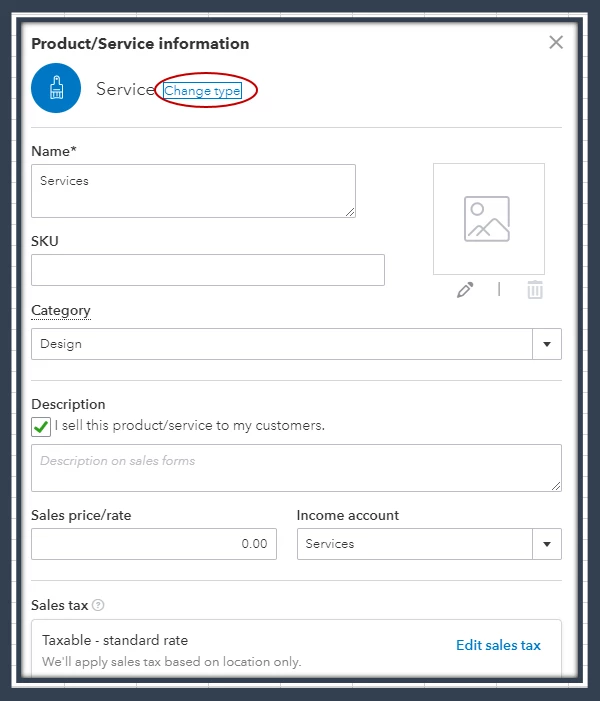
- Click Change type.
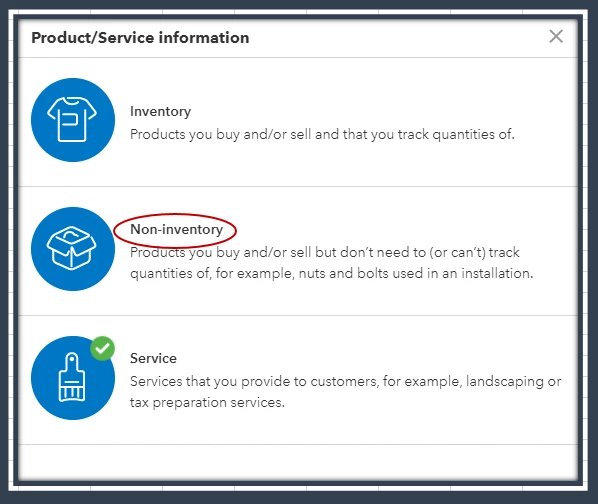
- Choose Non-inventory.
- Once done, click on Save and Close.
For more details, please see this article: Change Product and Service Item Types in QuickBooks Online.
Also, I'd suggest reaching out to our QuickBooks Payments Team to check if they have an option to change the default. They can securely access your account and provide accurate steps.
You can also check out this article to learn more about payment links: Accepting Payments in QuickBooks.
Additionally, I've included these resources that'll help you learn more about accepting electronic customer payments for online invoices and in-person sales. This way, you'll be able to track your sales record accurately.
Please let us know if you have other questions or concerns about managing customer payments in QuickBooks, Raema, Raema. I'm always here to help you out.

