
July 8, 2020
Solved

Where do I go to put my companies logo back onto our invoices. since purchasing the new version we lost it and i don't kniow where to go to put it back HELP

  • July 8, 2020
  • 1 reply
  • 0 views
Original commenter did not share additional details

Best answer by ReyJohn_D

I'm here to ensure you're able to add a logo to your invoices, @63maxdieselinc.

Glad to hear you've purchased our new version of QuickBooks Online. We've added some features to our product to ensure we optimize your experience.


We can add a logo to your invoices through the Account and Settings page. Here's how:
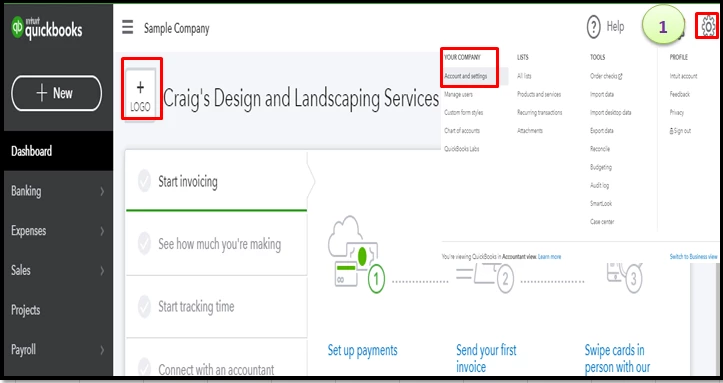
  1. Click the Gear icon ⚙️, and then choose Account and Settings under the Your Company section. Alternatively, you can click the plus (+) icon beside your company name to access the Account and Settings page.
  2. Select the Company tab, and then tap the pencil icon ✏️ under the Company name section to add a logo.
  3. Click the plus (+) icon, and then pick a logo you want to add.
  4. Wait for it to load, and then select Save.
  5. Choose Save again, and then hit Done.

You may want to go to the Sales tab, and preview your invoices to see the logo you've added.

Then, you'll want to customize your invoices to personalize their format and details. Check out this article for the steps: Customize invoice in QuickBooks Online.


Also, you can record the invoice payments from your customers. Please refer to this resource for more info: Receive invoice payments.

I'm always around in the Community if you need more help with managing your invoices or anything else related to QuickBooks. Take care and stay safe always.

1 reply

ReyJohn_DAnswer
July 8, 2020

I'm here to ensure you're able to add a logo to your invoices, @63maxdieselinc.

Glad to hear you've purchased our new version of QuickBooks Online. We've added some features to our product to ensure we optimize your experience.


We can add a logo to your invoices through the Account and Settings page. Here's how:
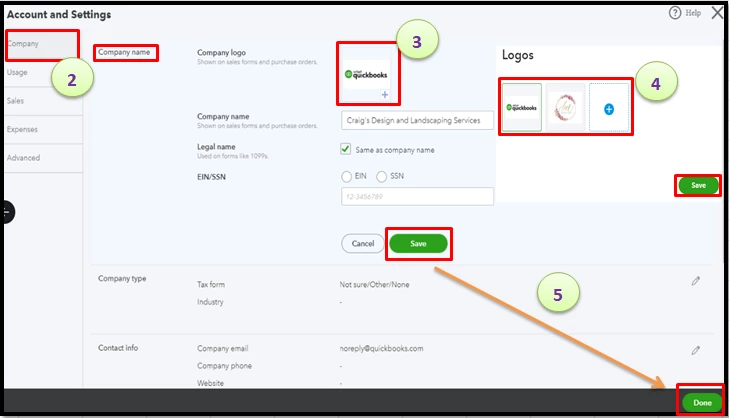
  1. Click the Gear icon ⚙️, and then choose Account and Settings under the Your Company section. Alternatively, you can click the plus (+) icon beside your company name to access the Account and Settings page.
  2. Select the Company tab, and then tap the pencil icon ✏️ under the Company name section to add a logo.
  3. Click the plus (+) icon, and then pick a logo you want to add.
  4. Wait for it to load, and then select Save.
  5. Choose Save again, and then hit Done.

You may want to go to the Sales tab, and preview your invoices to see the logo you've added.
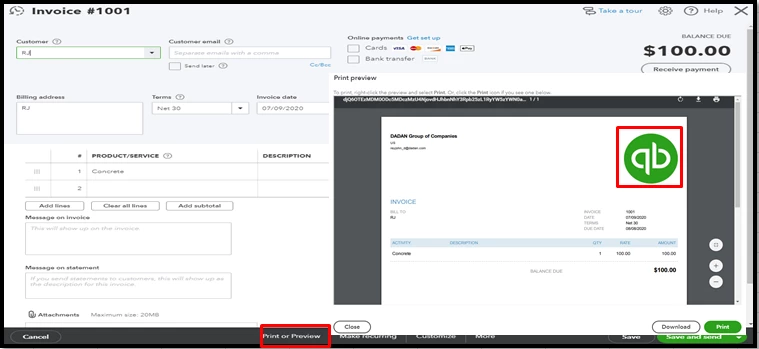
Then, you'll want to customize your invoices to personalize their format and details. Check out this article for the steps: Customize invoice in QuickBooks Online.


Also, you can record the invoice payments from your customers. Please refer to this resource for more info: Receive invoice payments.

I'm always around in the Community if you need more help with managing your invoices or anything else related to QuickBooks. Take care and stay safe always.

July 10, 2020

Thank You So Much!! you are a life saver. You helped me by simplifying the steps for me. It was easy to do.