

October 18, 2021
Question

Customer overpaid for taxes, did a refund, but customer still has 'Unapplied Payment/Credits'

  • October 18, 2021
  • 1 reply
  • 0 views

Hello!

I am having trouble balancing a customer account after we had a small problem with taxes.

Let me explain exactly what happened:
I collected taxes (for this customer) that were not supposed to be collected. It happened on 5 invoices.

After 3 invoices, we noticed the problem, I edited the invoice to remove the taxes from it then I had an amount 'received' greater than the 'invoice total' so I think it automatically created 'Credits' to that client. I did a refund corresponding to the sum of the 3 taxes amounts but the client still has 'Credit' on his account.
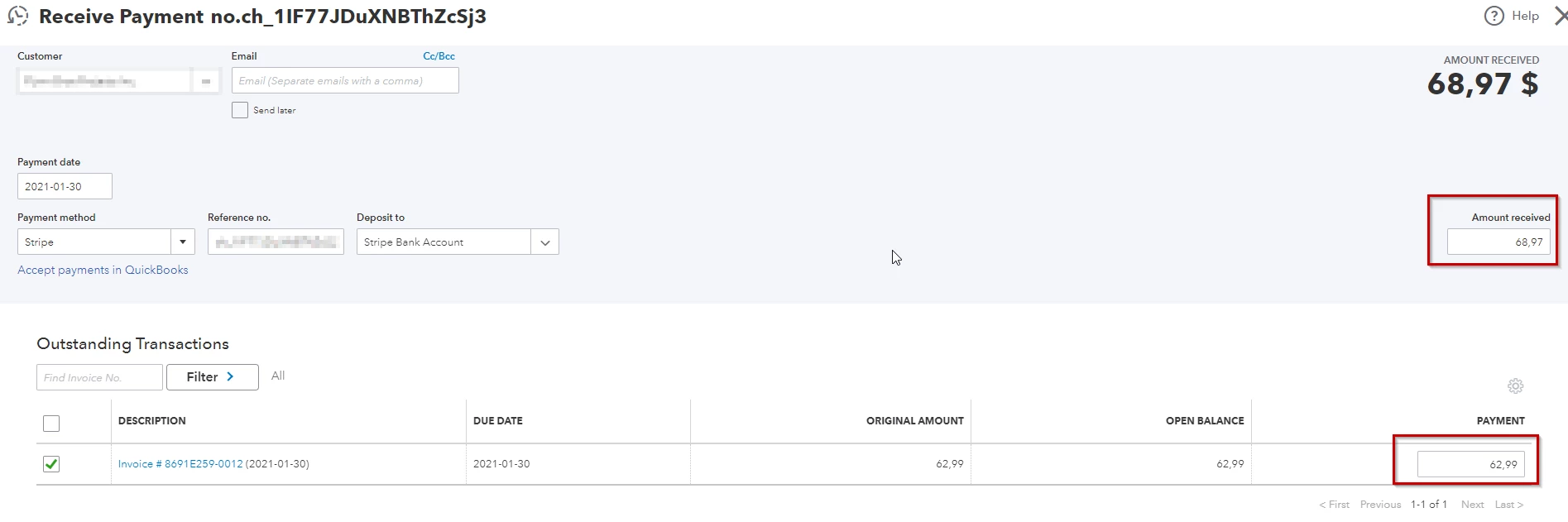
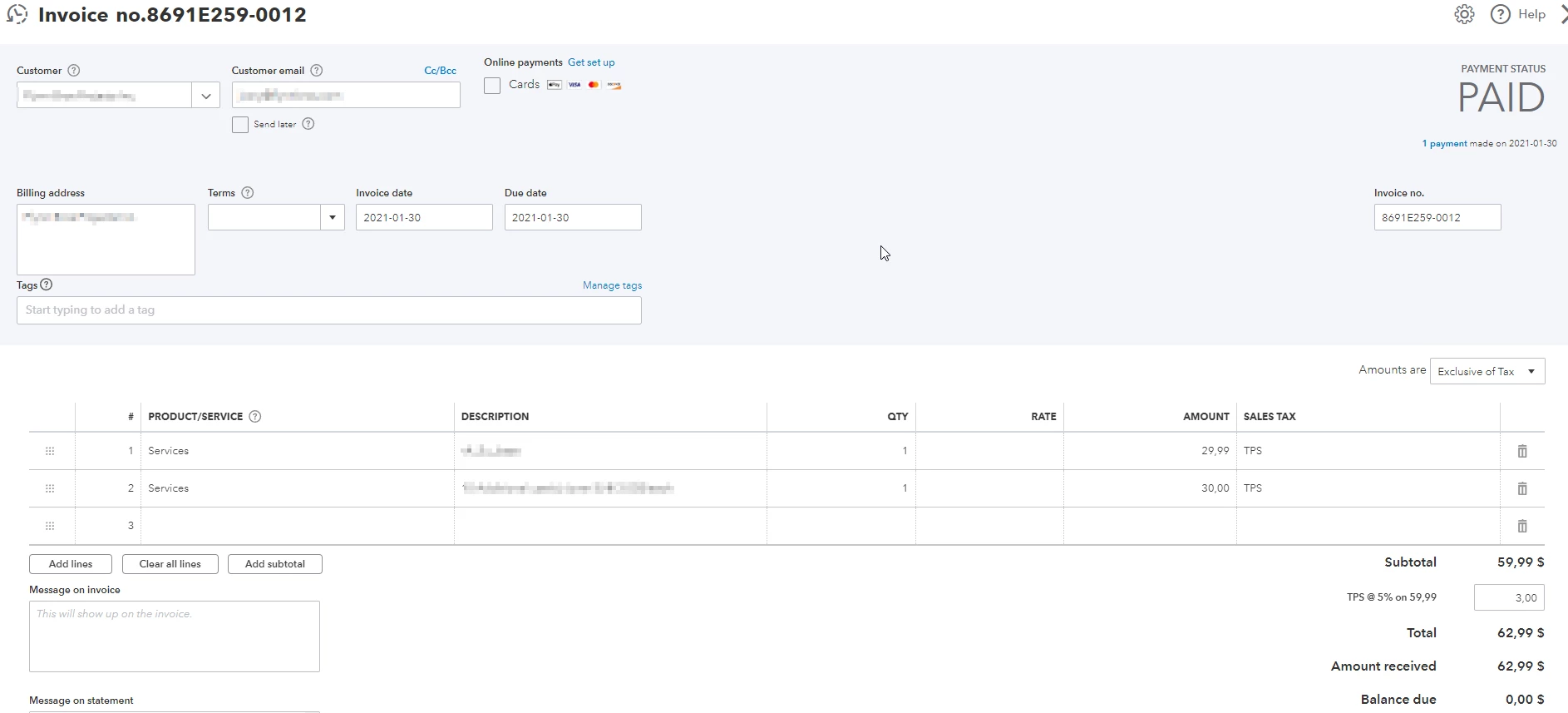
 

There was 3 invoices exactly like this one. So I created a refund of 3x 5.98$ = 17.94$
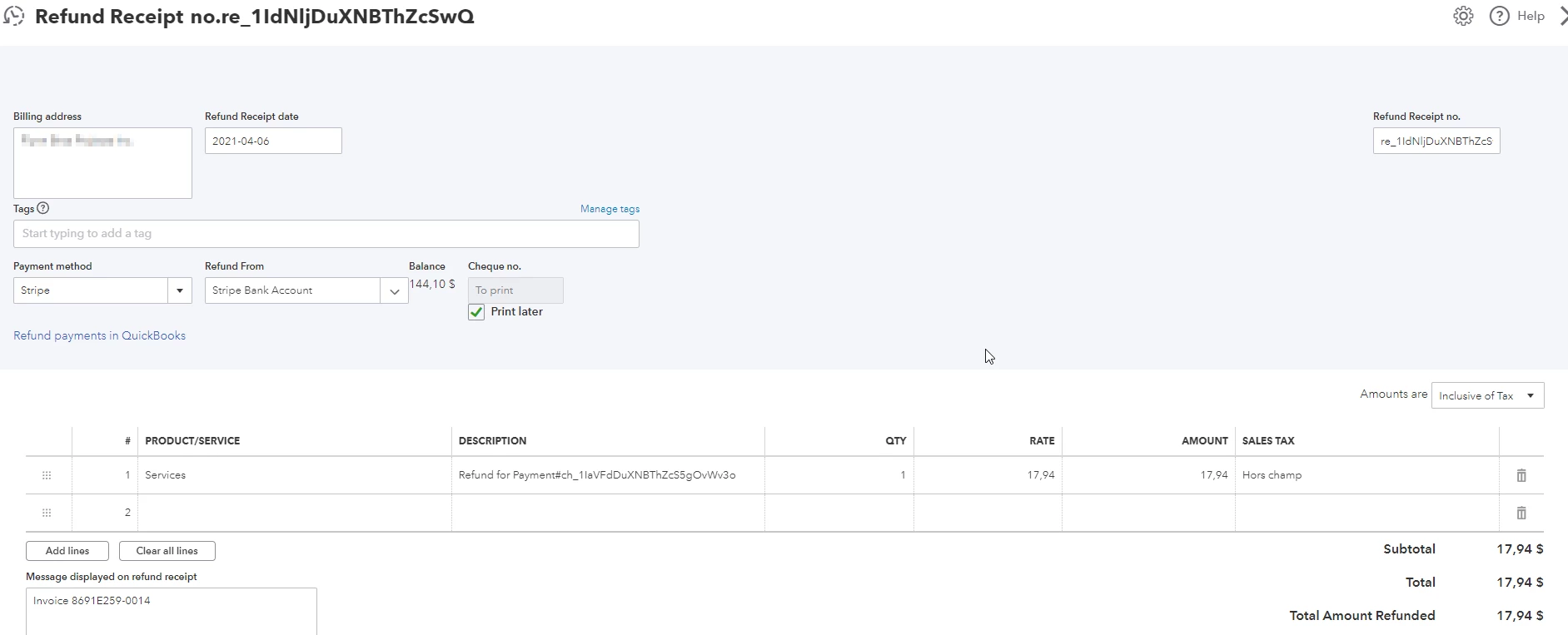
It happened on 2 other invoices before I finally fixed my transaction problem.. So I did the same exact thing for the 2 other invoices: Removed the tax from the invoice, then the 'Amount received' was greater than the invoice total. Then I did a second refund for those 2 taxes amounts.
However, the customer still has 'Credits' to his account and I can't figure out how to clear them ?

Here is a full view of the customer transactions with sums:
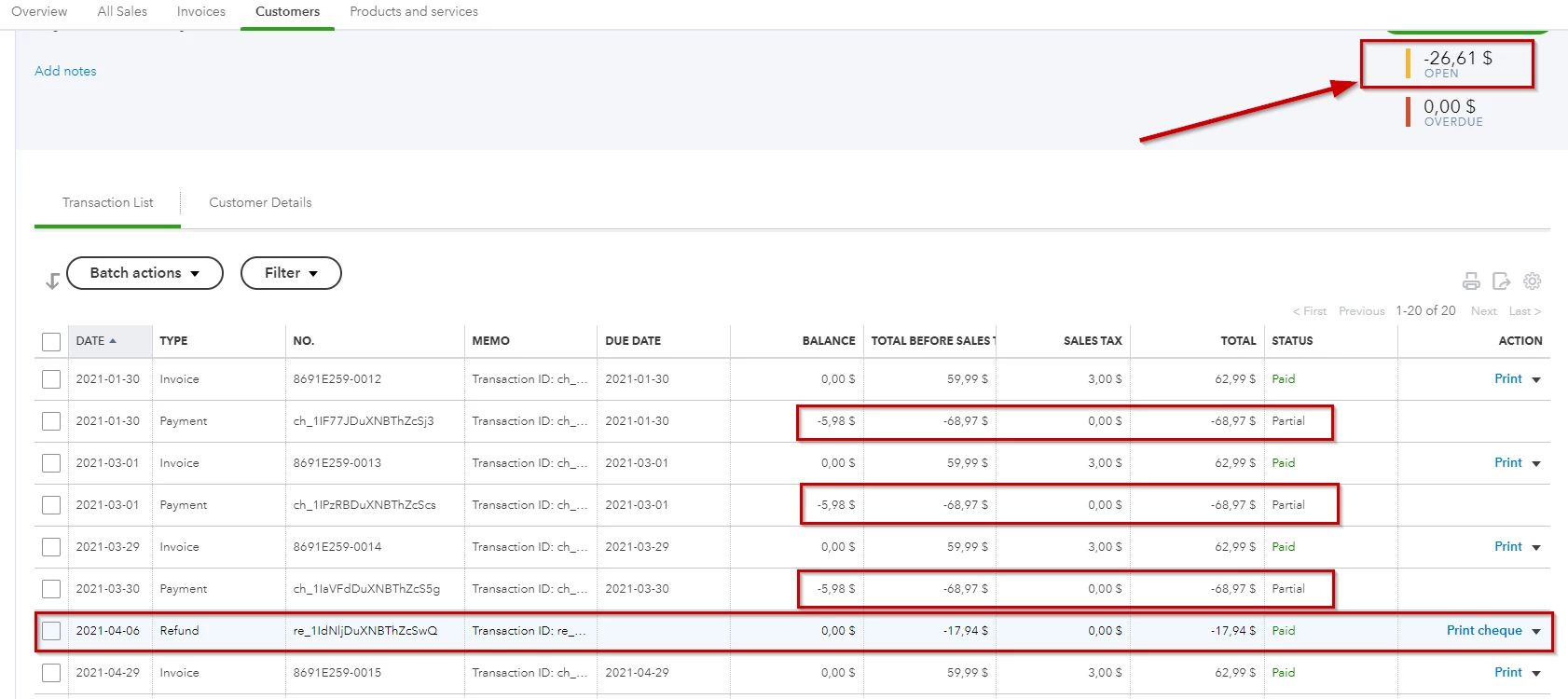
Notice that the 2 refunds did not clear the -26.61$ OPEN balance and the customer still has 5 credits:
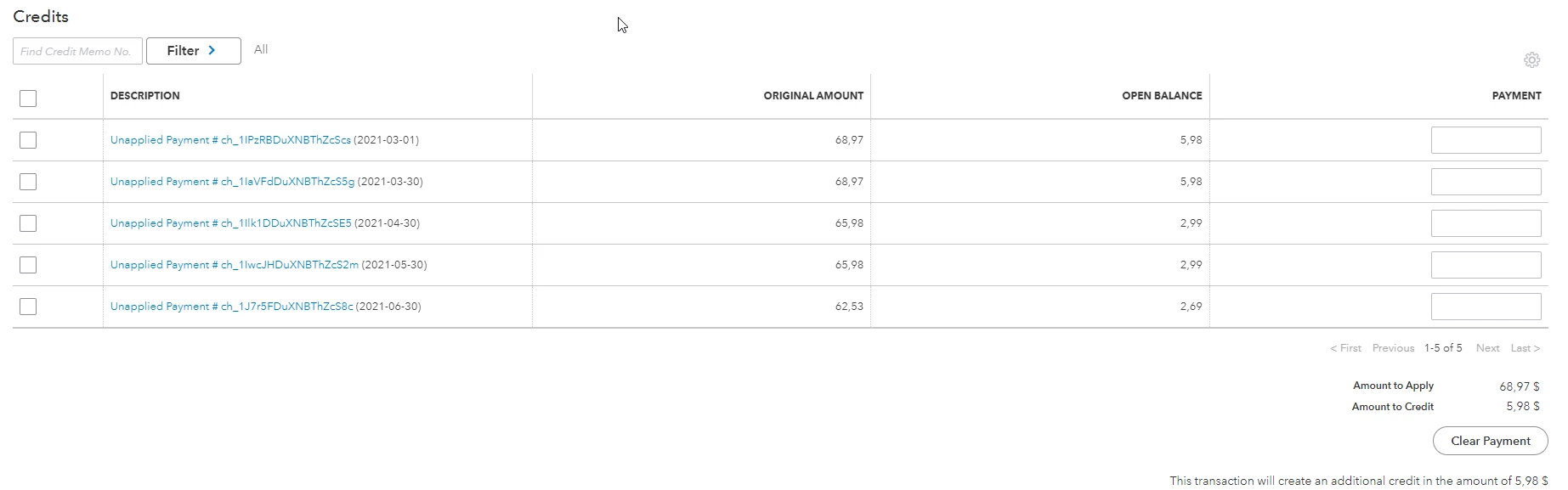
What am I doing wrong?
Could someone explain me what needs to be done? Even if I create a 'false' refund just to test, the OPEN balance stays at -26.61?

Thank you

1 reply

October 19, 2021

Hi raphjutras,


Welcome to Community!  Ensuring your customer transactions are accurate can be somewhat overwhelming in situations such as this. With QuickBooks Online you can link a credit or overpayment to your recorded refund.  I'd be glad to assist!


Based on the details you've provided, let's start with recording the refund so you can be reassured you've created it properly, by following these steps:


1. From the left menu bar select + New

2. Choose Add expense or Cheque

3. Select the customer you want to refund from the Payee ▼ drop-down

4. In the Payment account ▼ drop-down, enter the bank account where you deposited the overpayment to

5. On the first line in the Category column, select Accounts Receivable.

6. Enter the refund in the Amount field.

7. Fill out the other fields and then select Save and close.


Next, you're going to link the refund to the customer's credit.  Here's how:


1. Go to + New

2. Choose Receive payment

3. Select the same Customer you used when recording the refund and fill in the required fields

4. Under the Outstanding Transaction section, select the checkbox beside the Expense or Cheque you created when recording the refund

5. Make sure the payment is equal to the open balance, then select Save and close

That's it!  


For future reference, here's an article to assist with Recording Customer Refunds in QuickBooks Online.


If you have any additional questions, please feel free to reach back out.  We'd be happy to help!