June 27, 2020
Solved

I created an expense claim from a receipt, and now I can't find it. Where do they go?

  • June 27, 2020
  • 2 replies
  • 0 views
Original commenter did not share additional details

Best answer by LauraAB

Hello jastolfi,


You've done a great job with troubleshooting so far as those are certainly areas you can look for receipts you've entered into QuickBooks Online. I want to make sure we track down this transaction so you can ensure it's entered correctly in your books.


When you use the Receipts feature, you can use expense receipt images to create expenses transactions or even bills. After initially sending in or uploading the image, the program will process it, then allow you to create the transaction once that processing is complete. It sounds like you've successfully gone through those steps and now it's a matter of locating the created transaction.


Once you've fully created the transaction, you should see it in the Reviewed tab of the Receipts page. Since you're not seeing it there, I have another area of QuickBooks I can show you that's really useful in situations like this. It's called the Audit Log.


In the Audit Log, you can see nearly all activity in your books, including when transactions were created. I recommend using this tool to search and see if your expense transaction saved in the books. If it did, you can click the View option to learn more about the transaction, such as which accounts it's allocated to. Here are the steps you can take.

  1. Click the Gear icon.
  2. Choose Audit Log.
  3. Click Filter.
  4. Choose your filter options and click Apply.
  5. Find the transaction and click View to learn more about it.

You can learn more about the Audit Log here: Use the audit log in QuickBooks Online


In this case, I recommend filtering for the date you entered the transaction and the user that entered the transaction, then leave it at that. I say this because there are a few different things you can look for rather than just the expense transaction record. Since you're adding the image from the Receipts tab, you'll be able to see an attachment added to the books as well. Here's an example of what I mean from a test account.
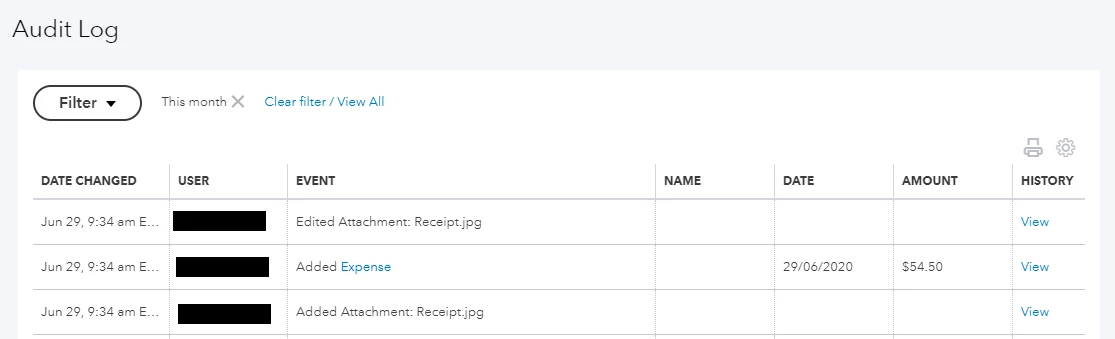


When you narrow down the search to include something like the "Transactions" filter, the attachment lines are filtered out. These two lines, however, can be a good indicator that you're looking at the expense transaction you need.


Give that a shot. For your reference, here's more about the Receipts feature: Capture and categorize receipts and bills. If you find the transaction you need and want to make changes to it, the easiest way to find it would be to go directly in to the chart of accounts through the Accounting tab since you're not seeing it in the Expenses section. In the chart of accounts, find the account it's linked to and select View history if it's a bank account. If it's not a bank account, click Run Report, then select the transaction from the account report to open it.


To troubleshoot further, feel free to get in touch with the QuickBooks Online support team using one of the following options.


Phone and Chat: Click Contact Us to learn how to reach phone and chat support.

Schedule a Callback: click (?)Help in the upper right > click Contact Us > explain your situation > click Let's Talk > choose Get a callback (Note: Callback hours are the same as regular phone hours.)

Social MediaFacebookTwitter, and Instagram from Monday to Friday between 9 a.m. and 8 p.m. ET


We're here to help!

2 replies

jastolfiAuthor
June 27, 2020

... and it's not under 'Reviewed', nor 'Expenses', and is not matched under any Banking account.

LauraABAnswer
June 29, 2020

Hello jastolfi,


You've done a great job with troubleshooting so far as those are certainly areas you can look for receipts you've entered into QuickBooks Online. I want to make sure we track down this transaction so you can ensure it's entered correctly in your books.


When you use the Receipts feature, you can use expense receipt images to create expenses transactions or even bills. After initially sending in or uploading the image, the program will process it, then allow you to create the transaction once that processing is complete. It sounds like you've successfully gone through those steps and now it's a matter of locating the created transaction.


Once you've fully created the transaction, you should see it in the Reviewed tab of the Receipts page. Since you're not seeing it there, I have another area of QuickBooks I can show you that's really useful in situations like this. It's called the Audit Log.


In the Audit Log, you can see nearly all activity in your books, including when transactions were created. I recommend using this tool to search and see if your expense transaction saved in the books. If it did, you can click the View option to learn more about the transaction, such as which accounts it's allocated to. Here are the steps you can take.

  1. Click the Gear icon.
  2. Choose Audit Log.
  3. Click Filter.
  4. Choose your filter options and click Apply.
  5. Find the transaction and click View to learn more about it.

You can learn more about the Audit Log here: Use the audit log in QuickBooks Online


In this case, I recommend filtering for the date you entered the transaction and the user that entered the transaction, then leave it at that. I say this because there are a few different things you can look for rather than just the expense transaction record. Since you're adding the image from the Receipts tab, you'll be able to see an attachment added to the books as well. Here's an example of what I mean from a test account.


When you narrow down the search to include something like the "Transactions" filter, the attachment lines are filtered out. These two lines, however, can be a good indicator that you're looking at the expense transaction you need.


Give that a shot. For your reference, here's more about the Receipts feature: Capture and categorize receipts and bills. If you find the transaction you need and want to make changes to it, the easiest way to find it would be to go directly in to the chart of accounts through the Accounting tab since you're not seeing it in the Expenses section. In the chart of accounts, find the account it's linked to and select View history if it's a bank account. If it's not a bank account, click Run Report, then select the transaction from the account report to open it.


To troubleshoot further, feel free to get in touch with the QuickBooks Online support team using one of the following options.


Phone and Chat: Click Contact Us to learn how to reach phone and chat support.

Schedule a Callback: click (?)Help in the upper right > click Contact Us > explain your situation > click Let's Talk > choose Get a callback (Note: Callback hours are the same as regular phone hours.)

Social MediaFacebookTwitter, and Instagram from Monday to Friday between 9 a.m. and 8 p.m. ET


We're here to help!

jastolfiAuthor
July 3, 2020

Thank you very much.

It turns out the program processed the receipt with the wrong year; hence it wasn't showing up to match.  'Audit' allowed me to locate it.

July 3, 2020

Thanks for following up, jastolfi! I'm glad to hear that you were able to track down the transaction using the Audit Log. It makes sense now why you weren't seeing it in the Expenses tab like you were expecting since that tab only shows the last 365 days of transactions and it sounds like the date of the transaction was beyond that time frame.


The Receipts feature does its best to pick up the details from the images you enter. It doesn't hurt to double-check the details before saving the transaction to ensure ultimate accuracy.


Feel free to stop by Community again. Have a great weekend!
