

August 2, 2024
Solved

EFTPS 941 Bank Change - How to update Agency in QBD?

  • August 2, 2024
  • 1 reply
  • 0 views

Hello,


I have changed our EFTPS bank for Federal and State taxes. Everything is working correctly, taxes are being pulled from the new bank and accepted by the state and the Feds. There is one item that I cannot figure out how to change. When I make the Federal Tax payment (in QBD), the Agency listed on the summary screen is still the Old Bank, not the new bank (nor the US Dept of Treasury).


Does anyone know where in QB Desktop I need to go to change this? I've looked throughout QB and just cannot find it. 


Thanks in advance. 


THanks.  
Best answer by SarahannC

I appreciate your prompt response, dt126a. The agency is for a tax agency, not for a bank account. The steps below will guide you through the process of changing the agency. Here's how:


  1.  Go to the Employee menu and select Payroll Center.
  2. Click Manage Payment Methods.
  3. Select Schedule Payments and choose Federal 941. Then, click Edit.
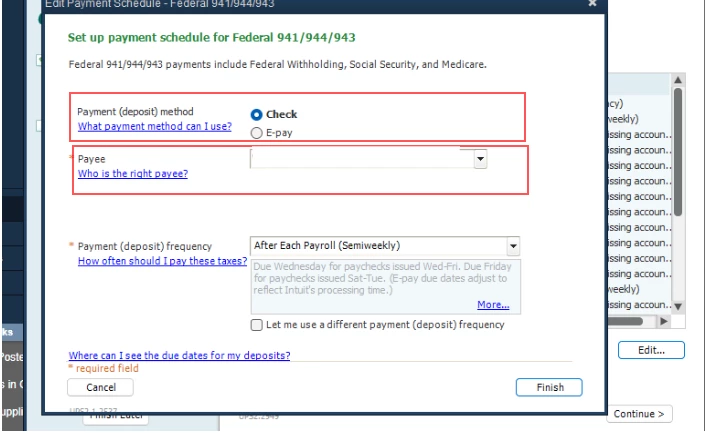
  4. Click the radio button for Check. This allows you to change to First Republic Bank.
  5. In the Payee field, click the drop-down arrow and choose US Treasury or City National Bank.
  6. Once done, make sure to set the payment method to E-pay again.
  7. Finally, click Finish to reflect the changes.


Additionally, you can check this article for more details: Set up or change your payroll tax filing or payment schedules
 
Please let me know if you have other concerns about changing information in QuickBooks. I'll be around.

1 reply

August 2, 2024

I can help you update the bank information at your listed agency in QuickBooks Desktop Payroll, @dt126a.


You can easily update the bank account for federal and state tax payments in QuickBooks Desktop. I’ll guide you through the process. First, update your bank account information with the federal and state agencies.


Here's how:


  1. Visit the Electronic Federal Tax Payment Services (EFTPS) website and select My Profile.
  2. Sign in using your current PIN and password.
  3. Under the Enrollment menu, select Additional Taxpayer Enrollment.
  4. Accept Privacy Act and Paperwork Reduction Act information.
  5. Enter your new bank info. 
  6. Create a new PIN.
  7. Sign out after you complete the new enrollment.
  8. Create a new Internet password.
  9. Sign in with the new PIN and password.


To help you adjust your e-payment to pay your new account, you can follow these steps:


  1. Go to Employees, then select Payroll Center.
  2. Choose the Pay Liabilities tab. From the Other Activities list, select Change Payment Method.
  3. Click E-pay accounts. You will see a list of your bank accounts and statuses. 
  4. Select the old bank account, then select Edit. To disable it, clear the account number and routing number field. Then select Finish.
  5. Select the new bank account you want to use for e-pay, then click Edit.
  6. Verify the account number and routing number entered are correct. Then, choose the account type. Select Finish. Your new bank account will show Enabled in the E-pay accounts screen. Select Finish Later to close the window.


For more information, browse this article: Change your federal and state e-pay bank account in QuickBooks Desktop Payroll Enhanced.


Moreover, once all the preparations are complete, you might also consider visiting this article for potential future use: Accessing payroll tax forms and tax payments.


Feel free to return to this thread if you've got additional questions about changing your e-pay bank account in QBDT. I'll be more than glad to assist you further. Stay safe.

dt126aAuthor
August 2, 2024

Hello Eman:


I have completed all of those steps. The bank account has been changed and my payments are being withdrawn correctly. However, the AGENCY field in QB is still showing the old bank.


I attached a screen shot and whited out my account info. City National Bank is the new bank. The Bank account and routing fields are correct. However, the agency field is still showing First Republic Bank, which is my old bank. How do I change this to either US Treasury or City National Bank? 

SarahannCAnswer
August 2, 2024

I appreciate your prompt response, dt126a. The agency is for a tax agency, not for a bank account. The steps below will guide you through the process of changing the agency. Here's how:


  1.  Go to the Employee menu and select Payroll Center.
  2. Click Manage Payment Methods.
  3. Select Schedule Payments and choose Federal 941. Then, click Edit.
  4. Click the radio button for Check. This allows you to change to First Republic Bank.
  5. In the Payee field, click the drop-down arrow and choose US Treasury or City National Bank.
  6. Once done, make sure to set the payment method to E-pay again.
  7. Finally, click Finish to reflect the changes.


Additionally, you can check this article for more details: Set up or change your payroll tax filing or payment schedules
 
Please let me know if you have other concerns about changing information in QuickBooks. I'll be around.